Desktop Apps with Qt Widgets and PySide6
Learn to build powerful desktop applications using Qt Widgets and Python. Leverage Python's simplicity with Qt's robust GUI framework to create professional applications with minimal complexity and maximum productivity.
 Taught by Daniel Gakwaya
- Beginner → Advanced
- 24h 36m of video
- Qt
- PySide6
- GUI
- Desktop
- Python
About this course
This course combines the power of Python with the robustness of Qt to create amazing desktop applications. You’ll discover how Python’s readable syntax makes GUI development more accessible, while Qt provides the professional framework needed for real-world applications.
- Python’s Simplicity: easy to learn, powerful to use
- Cross-Platform Magic: write once, run on Windows, Mac, and Linux
- Real-World Projects: build applications you can actually use
- Modern Python Patterns: best practices for GUI development
- Complete Integration: connect to databases, APIs, and more
What you'll learn
- Installing PySide6, organizing GUI code in classes, signals and slots
- Essential widgets, layouts and size policies, message boxes, dialogs for files, fonts, colors, and input
- Designing interfaces visually, loading .ui files with QUiLoader, compiling to Python, managing resources
- Qt styles, QPalette, style sheets, and external style sheets
- QSettings, QFile and QDir, QNetworkAccessManager and JSON, Qt Linguist and QTranslator, application icons
- Event system and filters, custom events and widgets, QPainter, drag and drop with the clipboard
- Model/View basics, custom table and tree models, delegates, proxy models, SQLite app
- Scene-based graphics, selections and transforms, resizable items, rubber band selection, drag and drop into scenes
- Copy, cut, and paste with data serialization, saving and loading documents, undo/redo with command classes
- Packaging PySide6 apps, deploying on Windows (windeployqt, Qt Installer Framework), Linux (linuxdeployqt), and Mac
Projects you'll build
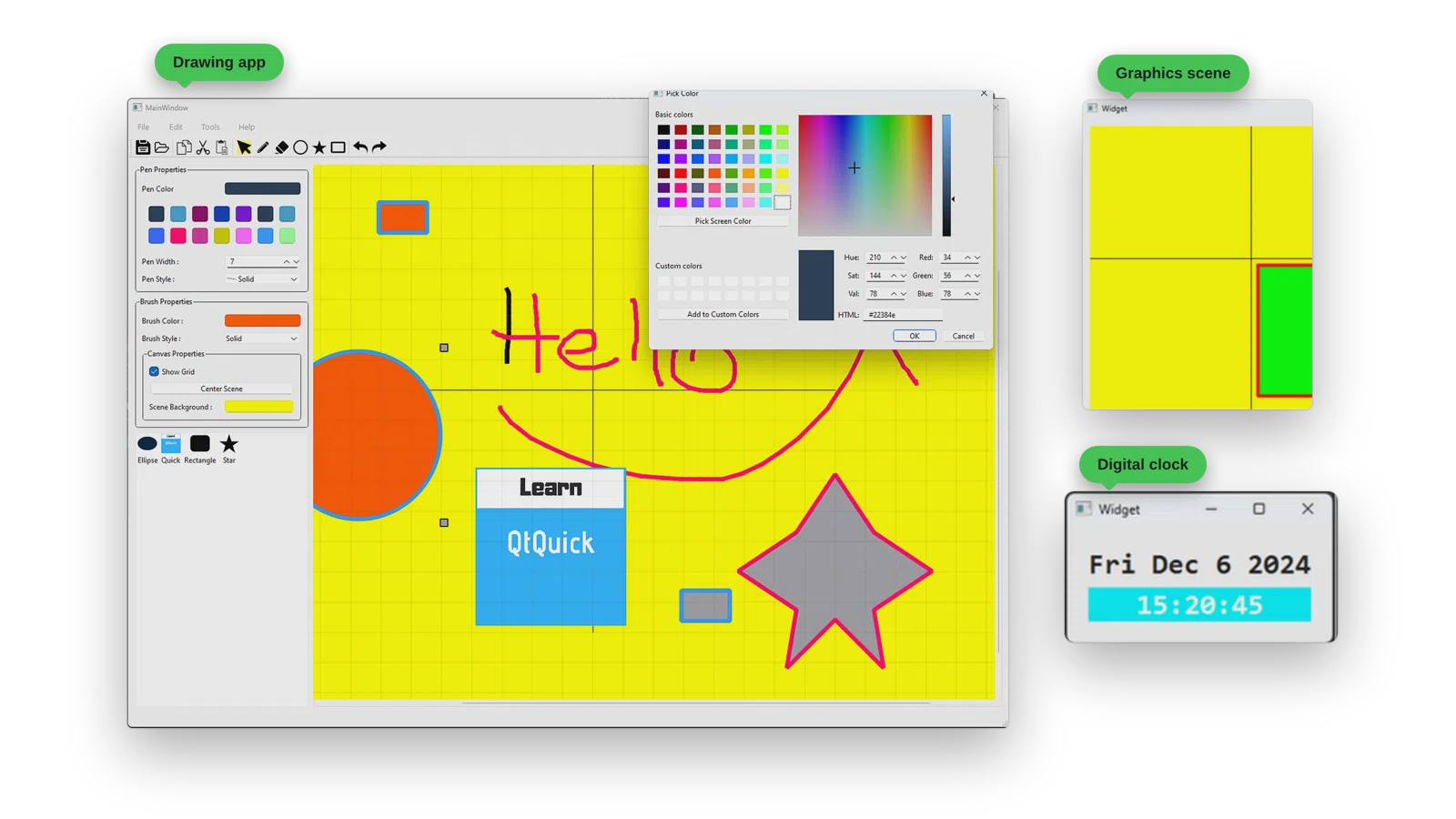
A Painting Application
A professional painting application built with Qt Widgets and PySide6, with selectable and resizable items, menus, toolbars, and custom drawing tools for pens, shapes, and an eraser. You’ll build it in stages: first the interface and canvas, then a more powerful version on the Graphics View framework, then the polish that makes it feel like a real product, including pen and brush property panels, a color picker, custom tool cursors, copy, cut, and paste, saving and loading documents, and full undo/redo.
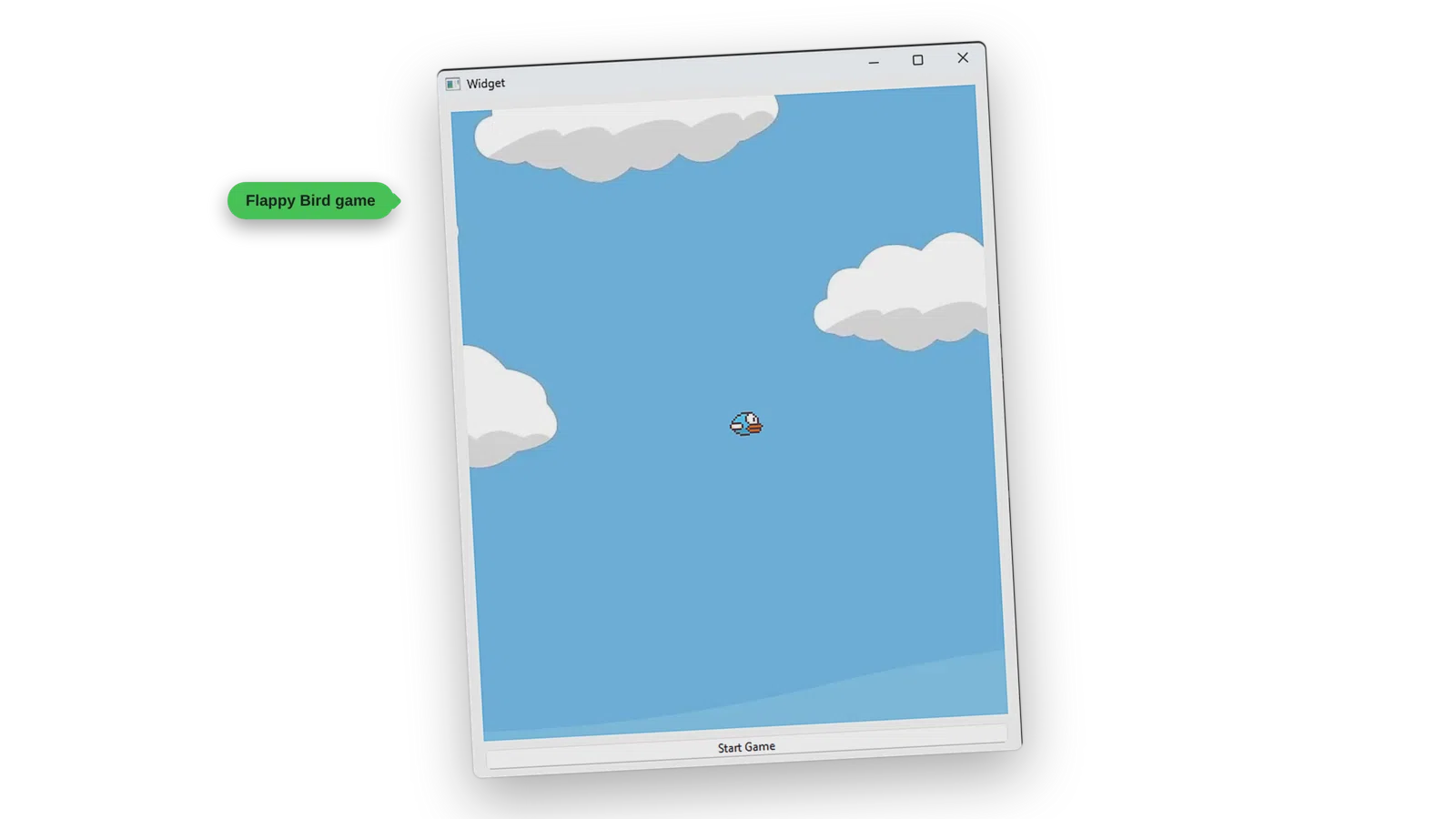
A Flappy Bird Game
You will create a Flappy Bird clone using Qt Widgets and PySide6, featuring smooth animations, collision detection, and score tracking. Built on the Graphics View framework, you’ll make the pillars and the bird as graphics items, make the bird fly, and detect collisions between them.
Curriculum
13 chapters · 107 lessons · 24h 36m
Chapter 1 Introduction 3 lessons
Chapter 2 Environment Setup 3 lessons
Chapter 3 Signals and Slots 1 lesson
Chapter 4 A Tour of Qt Widgets 15 lessons
- 4.1 Introduction
- 4.2 QWidget
- 4.3 QMainWindow
- 4.4 QMessageBox
- 4.5 QPushButton
- 4.6 QLabel and QLineEdit
- 4.7 QTextEdit
- 4.8 QLabel and Images
- 4.9 Size Policies
- 4.10 Grid Layout
- 4.11 CheckBox and RadioButton
- 4.12 QListWidget
- 4.13 QTabWidget
- 4.14 QComboBox
- 4.15 Summary
Chapter 5 Qt Designer 12 lessons
- 5.1 Introduction and Install
- 5.2 Using Qt Designer
- 5.3 Using Qt Creator
- 5.4 Qt Designer QUiLoader
- 5.5 Qt Designer QUiLoader V2
- 5.6 Compiling Ui Files to Python
- 5.7 Using Resources Manually Through Qt Designer
- 5.8 Using Resources Manually Through Qt Creator
- 5.9 Automatic Resources Through Qt Designer
- 5.10 Automatic Resources Through Qt Creator
- 5.11 QMainWindow with QDesigner Resources
- 5.12 Summary
Chapter 6 Dialogs 8 lessons
- 6.1 Introduction
- 6.2 QDialog
- 6.3 QDialogButtonBox
- 6.4 QFileDialog
- 6.5 QFontDialog
- 6.6 QColorDialog
- 6.7 QInputDialog
- 6.8 Summary
Chapter 7 Styling 7 lessons
- 7.1 Introduction
- 7.2 Styles
- 7.3 QPalette
- 7.4 QPalette Limitation
- 7.5 Style Sheets
- 7.6 External Sheets
- 7.7 Summary
Chapter 8 Settings 1 lesson
- 8.1 QSettings
Chapter 9 Files and Directories 4 lessons
- 9.1 Introduction
- 9.2 QFile
- 9.3 QDir
- 9.4 Summary
Chapter 10 Networking Basics 4 lessons
- 10.1 Introduction
- 10.2 QNetworkAcessManager
- 10.3 JSON
- 10.4 Summary
Chapter 11 Event Handling 11 lessons
- 11.1 Chapter Intro
- 11.2 Overview of Events
- 11.3 Specific Events
- 11.4 Event Propagation
- 11.5 Override QObject Event
- 11.6 Event Filters Theory
- 11.7 Event Filter on QObject
- 11.8 Event Filter on QApplication
- 11.9 QApplication Notify
- 11.10 Posting and Sending Events
- 11.11 Chapter Summary
Chapter 12 Custom Widgets 6 lessons
- 12.1 Chapter Intro
- 12.2 Composing Widgets
- 12.3 Composing DateTime
- 12.4 Modifying Widgets - DoubleClickableButton
- 12.5 Water Level Monitor
- 12.6 Promoting Widgets
Chapter 13 The Model View Architecture 32 lessons
- 13.1 Introduction
- 13.2 QListWidget
- 13.3 QTableWidget
- 13.4 QTreeWidget
- 13.5 QFileSystemModel
- 13.6 QStringListModel
- 13.7 QSortFilterProxyModel
- 13.8 Custom Models Overview
- 13.9 Custom Read-Only Model
- 13.10 Editable Models with Headers
- 13.11 Custom Models - Adding and Removing Rows
- 13.12 Custom Models Custom Roles
- 13.13 Custom Table Model
- 13.14 Custom Model Delegates
- 13.15 Delegate Custom Painting
- 13.16 Delegate Custom Painting - sizeHint
- 13.17 Custom Star Delegate - Overview
- 13.18 Custom Star Delegate - The UI
- 13.19 Custom Star Delegate - StarEditor
- 13.20 Custom Star Delegate - Final
- 13.21 Delegate Challenge
- 13.22 Drag and Drop in Convenience Widgets
- 13.23 Drag and Drop at Item Level
- 13.24 Drag and Drop in Custom Models
- 13.25 Person Tree Structure - The Design
- 13.26 Building The Person Tree Structure
- 13.27 Read-Only Tree Model - Concepts
- 13.28 Read-Only Tree Model With In-Memory Data
- 13.29 Read-Only Tree Model With Data From a File
- 13.30 Editable Tree Model
- 13.31 Expense Tracker
- 13.32 Expense Tracker with SQLite
More about this course
Many More Projects Along the Way
Alongside the two main projects, you’ll build smaller applications that each teach one idea well.
Freehand Painting and Drag and Drop
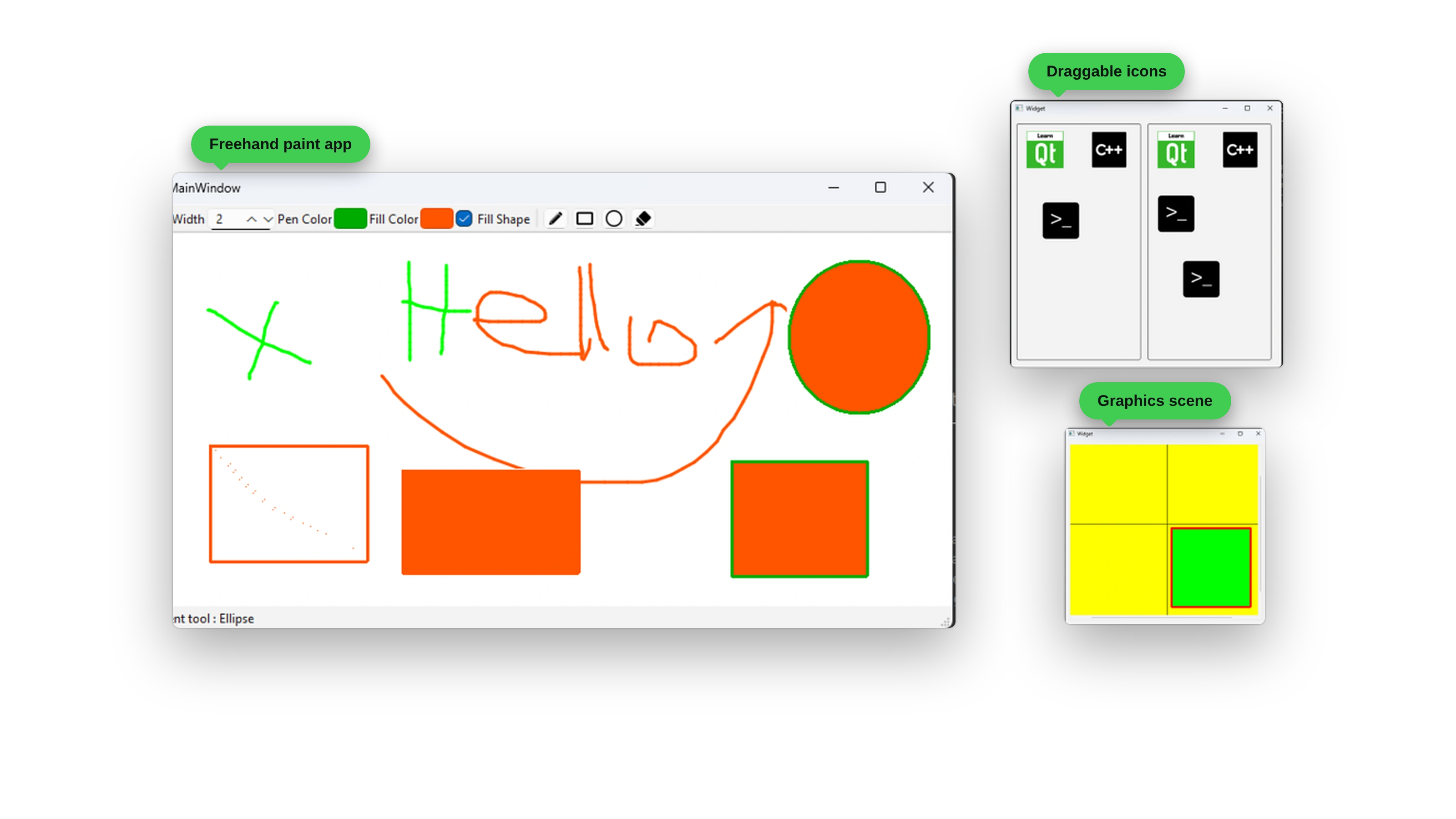
A freehand paint application with pen, rectangle, ellipse, and eraser tools, adjustable width, pen and fill colors, and a fill option, where you use Qt events at the lowest level. Then you’ll add drag and drop: dragging icons between widgets, receiving dropped images, and working with the clipboard. You’ll also meet your first graphics scene.
Custom Painting
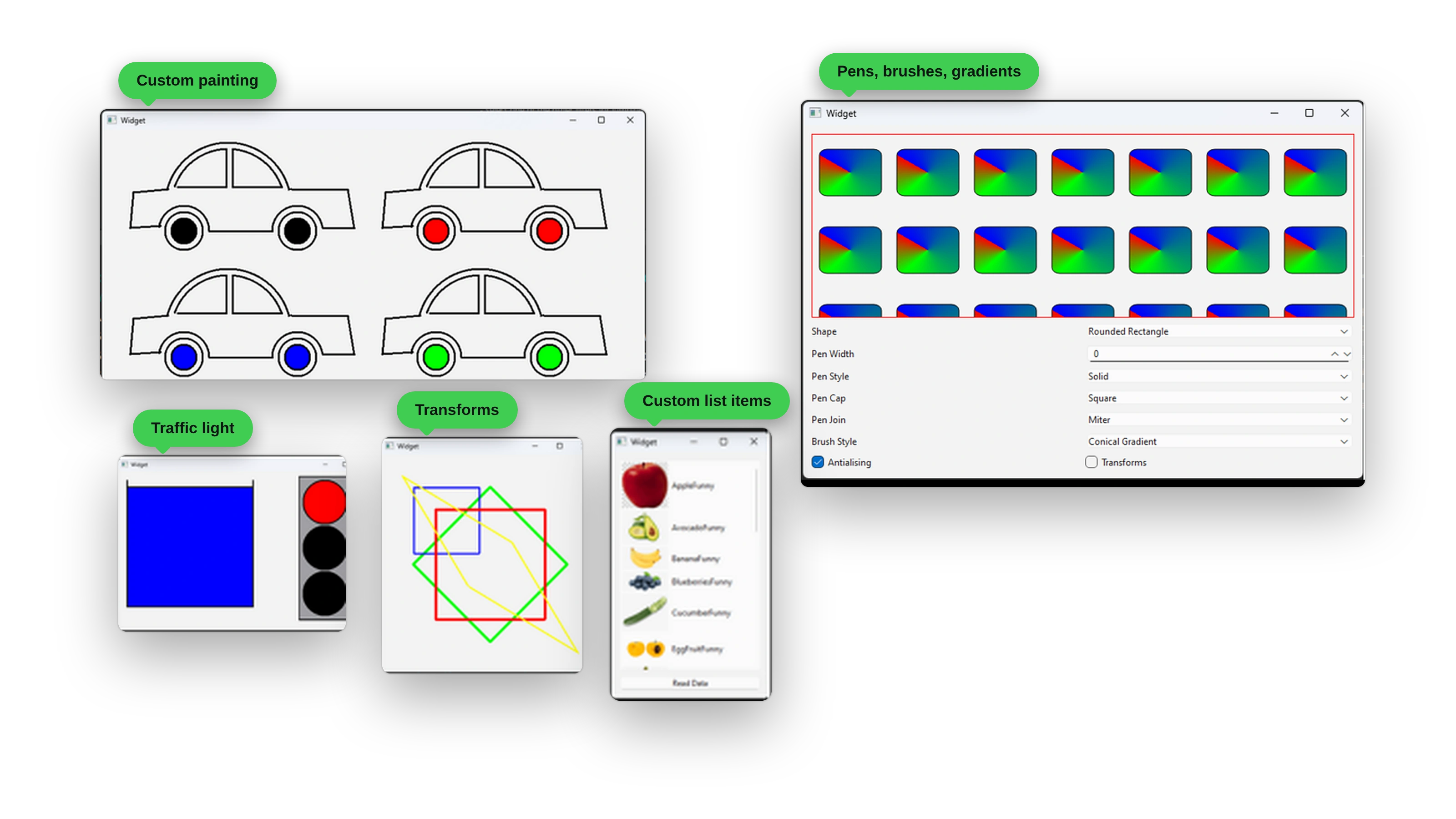
Take over how widgets look with QPainter. You’ll draw cars from scratch with different wheel colors, build a traffic light, and explore painter transforms. You’ll also build a playground for pens, brushes, and gradients where you change pen width, style, cap, join, brush style, and antialiasing and watch the result, and create custom list items with images.
Model-View Architecture
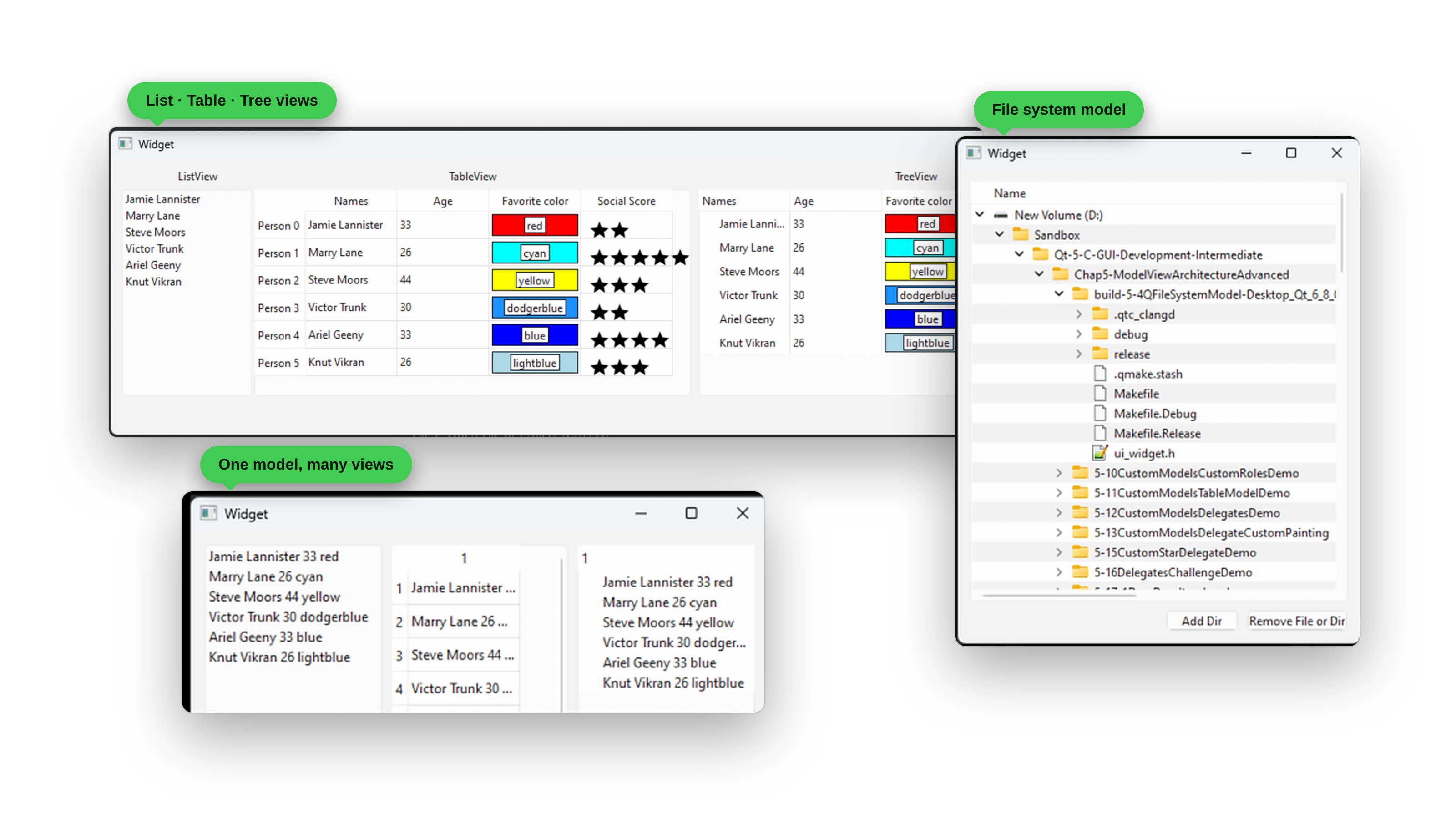
See one model feed list, table, and tree views at the same time, browse your file system with QFileSystemModel, and build custom delegates for colored cells and a star rating editor. From there you’ll build custom editable models, tree structures, and an Expense Tracker backed by SQLite.
And more: a Water Level Monitor widget, a datetime widget, a double-clickable button, a Shape Maker with fills, outlines, and gradients, networking examples with JSON, and a multi-language app with a saved language choice.
After This Course, You’ll Be Able To:
- Build beautiful desktop apps using Python and Qt
- Create professional UIs with Qt Designer, custom widgets, and your own drawing code
- Handle settings, files, networking, and SQLite databases
- Package and deploy Python GUI applications on Windows, Linux, and Mac
- Add GUI development to your Python skill set
- Connect desktop apps to web services and databases
Created By Someone Who Understands The Struggle
“Python developers often struggle with GUI development. Most tutorials focus on simple examples that don’t translate to real applications. I created this course to bridge that gap.”
With years of experience in both Python and Qt development, Daniel Gakwaya has built a course that gives you:
- Practical Python GUI patterns that actually work
- Real-world application architecture
- Solutions to common Python GUI problems
Whether you’re a Python developer looking to add GUI skills, or someone new to programming who wants to build desktop applications, this course gives you a clear, practical path forward.
What you’ll get:
- 24+ hours of Python-focused video across 20 chapters and 211+ lessons
- Complete Python source code for every project
- Python GUI best practices guide
- PySide6 setup and configuration
- Downloadable PDFs and course resources
- Lifetime updates as PySide6 and Python evolve
- Discord community access with 4,000+ Qt developers
- Certificate of completion
Your complete learning journey: by the end of the course you’ll have built production-quality applications and developed the confidence to create your own projects from scratch. From simple utilities to complex business applications, you’ll have the skills to bring your Python ideas to life with professional desktop interfaces.
🛡️ 30-DAY MONEY-BACK GUARANTEE
If you’re not completely satisfied with your progress after 30 days, get a full refund. No questions asked.
- Full 30-day trial period
- No questions asked
- Email support for refunds
- Risk-free learning
STILL HAVE QUESTIONS?
Get personalized help from instructor Daniel Gakwaya and the community.
- Join our Discord: chat with 4,000+ Qt developers, usually replied to within hours
- Email the instructor: daniel.g@learnqt.guide
Ready to build amazing Python desktop apps? Enroll today and start your journey. Or just start by watching the beginning free preview chapters to make sure the course works for you.
Your instructor
Daniel Gakwaya
Daniel is a Founder and Senior Software Engineer at Squared Computing. He has been writing software since 2011 and Qt is one of his favorite frameworks. Many of his cross platform Qt based projects are completed and out there on the market. Autodidact by nature ,he has a passion for learning new things and loves sharing knowledge with others. Especially people new to the dark art of software development.
What students say
No reviews are published yet.
Questions
Do I need prior programming experience?
No! The course is designed to be approachable. If you already have programming experience, you’ll be able to progress faster.
What if I get stuck on something?
You’ll have access to our Discord community of 4,000+ developers, plus direct help from Daniel. Most questions are answered within hours, and complex issues get detailed video responses.
How long will it take to complete?
Most students finish in 8-12 weeks studying 1-2 hours per day. With lifetime access, you can go at your own pace, with no pressure or deadlines.
Will this help me get a job?
Absolutely! The course focuses on real-world projects that showcase skills employers want. Many students have landed developer roles, freelance contracts, and promotions after completing our courses.
What if I'm not satisfied?
We offer a 30-day money-back guarantee. If you’re not completely satisfied with your progress, get a full refund, no questions asked.
Does the course get updated?
Yes! You get lifetime updates as technologies evolve. When Qt releases new versions or new content is added, you get it automatically at no extra cost.